File Download
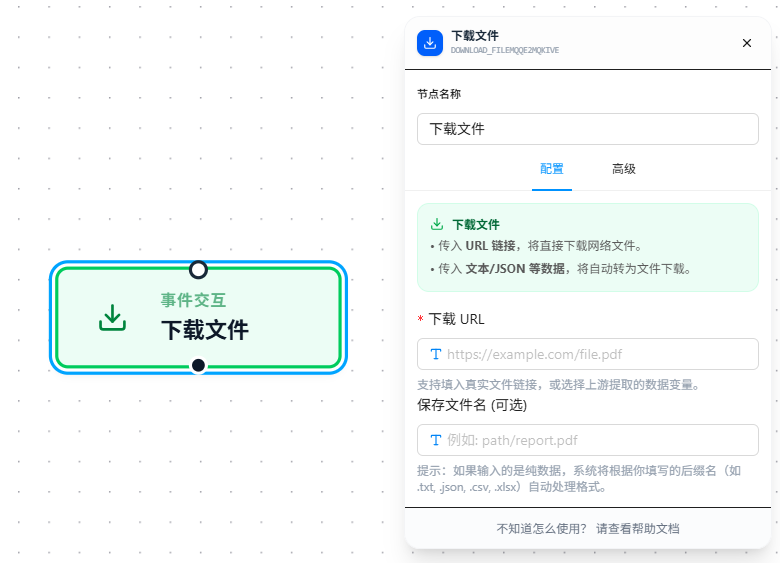
The File Download node supports two modes: pass a URL to download a network file directly, or pass text/JSON data for the system to auto-convert into a file download.
Overview
The node automatically determines the mode based on the "Download URL" input:
- It's a web address (starts with
https:///http:///ftp:///file://) → downloads the network file directly. - It's raw data (a variable, JSON object, plain text, etc.) → auto-converts to a file based on the extension in "Save Filename" and triggers download.
Both "Download URL" and "Save Filename" support {{variableName}} references to upstream data.
Quick Start
Case 1: Download a network file
- Drag the "File Download" node onto the canvas
- Fill in "Download URL" with a file link, e.g.
https://example.com/report.pdf - Fill in "Save Filename" as
report.pdf(optional; defaults to the server's original filename) - Execute
Case 2: Save data as a file
Say an upstream "Network Intercept" node captured some JSON data and you want to export it as Excel:
- Drag the "File Download" node onto the canvas
- Set "Download URL" to
{{responseData}}— the variable holding the captured data - Set "Save Filename" to
export.xlsx— the extension determines the output format - Execute, and the browser downloads
export.xlsxautomatically
If the data is an array of objects, Excel and CSV formats will use each object's keys as headers.
Parameter Reference
| Parameter | Type | Default | Description |
|---|---|---|---|
| Download URL | Text | — | Required. Accepts a URL (direct download) or a data variable (auto-convert). Supports {{variableName}} |
| Save Filename | Text | download | Optional. Supports {{variableName}}. The extension determines the output format for data conversion (see below) |
Data-to-file: Extension & Format Mapping
When the "Download URL" is not a web address, the system selects the output format based on the "Save Filename" extension:
| Extension | Output Format | Notes |
|---|---|---|
.txt | Plain text | Arrays of objects become tab-separated tables |
.json | JSON | Pretty-printed with indentation |
.csv | CSV | UTF-8 with BOM; object arrays auto-generate headers |
.xlsx / .xls | Excel | Object arrays become worksheets automatically |
Extensions not listed above default to
.txtbehavior.
FAQ
I provided a URL but got raw API data instead of a file
Symptom: Entered https://example.com/api/data and the download gave me JSON instead of a file.
Cause: The URL returns text data, not a binary file — the browser downloads it as-is.
Solution: This is actually expected behavior. If you just want to save the API response, make sure "Save Filename" has the right extension (e.g. .json).
Exported CSV shows garbled text in Excel
Symptom: CSV downloaded from data mode displays garbled Chinese characters in Excel.
Solution: The CSV is UTF-8 encoded. In Excel, use "Data → From Text/CSV" import and select UTF-8 encoding to display correctly.
Duplicate downloads within a short time only trigger once
Symptom: Two consecutive File Download executions in a loop — the second one didn't trigger.
Cause: The node has a built-in 10-second cooldown; duplicate downloads of the same content are skipped.
Solution: If you genuinely need repeated downloads, insert a "Delay" node between them to wait longer than 10 seconds.